Scriptri 0.5 is a release about connection rather than addition.
0.4 gave story knowledge a better home. Lore Pages held longer reference material, Entity Profiles grew into a real workspace, Glossary definitions became formatted, and continuity threads gained topics. Each of those lived somewhat on its own. 0.5 is the work of tying them together, so that consulting what you know about a character, a place, or a piece of worldbuilding does not mean leaving the scene you are writing.
The organizing idea for this release is simple. As a project grows, the tools meant to help you keep track of it should not become another thing you have to manage. Entity lists should stay searchable. Notes should stay readable. Reference material should be one glance away, not one navigation away.
A better-connected project workspace
Most of 0.5 is connective tissue between the manuscript, Entities, Lore, and continuity history.
You can define the kinds of entities your story actually uses. You can find any entity quickly once there are hundreds of them. You can open a complete, read-only reference while you write and follow it wherever it leads. You can link a phrase in your manuscript straight to the Lore Page that explains it. And you can read an entity's notes either in manuscript order or as continuing threads of thought.
None of this changes how drafting works. The scene editor is still the center of the app. These features sit around it and stay out of the way until you reach for them.
Custom Entity Types
The six built-in categories (Character, Place, Thing, Faction, Concept, Other) are no longer the only vocabulary a project has. You can create your own types: Factions, Artifacts, Species, Buildings, Plants, Cities, or whatever your story needs.
A custom type is a real part of the project, not a text label. You can:
- Create, rename, and reorder custom types.
- Give a type a default color and a type icon.
- Decide whether entities of that type can be used as locations.
- Decide whether that type should be preferred in POV selection.
- Reassign entities to another type when you delete a type that is still in use, so nothing is left without a type.
- Let an entity inherit its type's color, or give that entity an explicit color of its own.
- Export and import your type definitions along with the rest of the project.
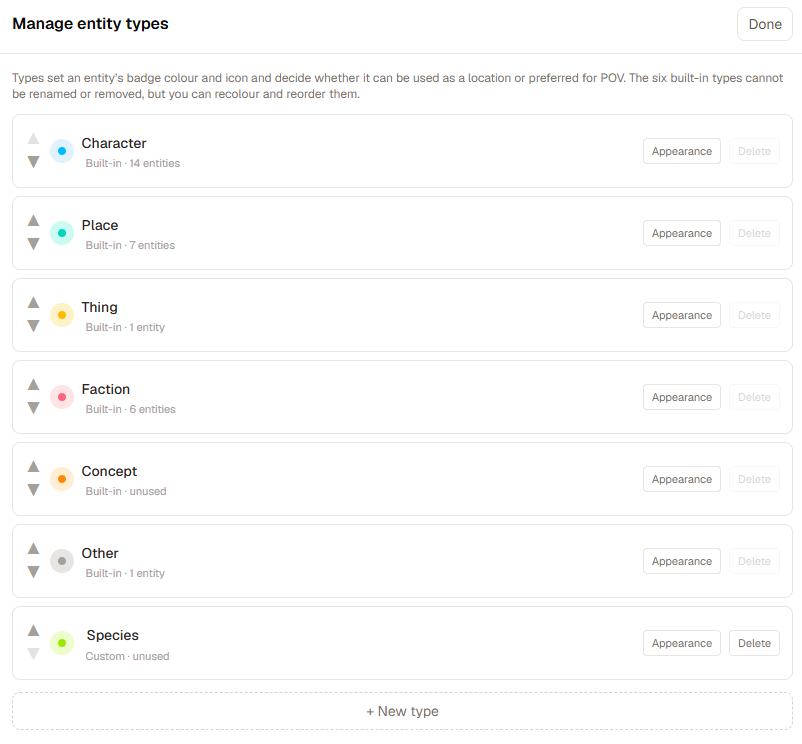
Built-in types keep their system identity. You can change their display order, color, and icon, but their names and their underlying capabilities are protected, so a project can always rely on Place meaning Place.
Two details are worth stating plainly. The icon you pick for a type represents the type itself in type-level places such as the type manager, badges, and the type menu. Individual entities still choose their own icons; a type icon is not pushed onto every entity of that type. And 0.5 does not recolor existing projects. New blank projects pick up the updated type-color defaults, while every entity color you can already see today stays exactly as it is.
The capability set is deliberately small. A custom type can participate as a location and can be preferred for POV. It is not a plugin system, and it does not let a type define arbitrary new behavior.
Finding entities in larger projects
Custom Entity Types make projects more varied. This is the change that keeps them navigable.
Entity selection controls that used to be long, flat menus are now built on one shared selector. Wherever you pick an entity, you get the same behavior:
- Search by entity name, alias, or type.
- Matching that tolerates differences in case and punctuation.
- Alphabetical ordering inside meaningful type groups.
- Type colors and labels that make a list easier to scan.
- Contextual sections such as
In this scene where they make sense.
- A keyboard-friendly combobox: type to filter, arrow keys to move, Enter to choose, Escape to close.
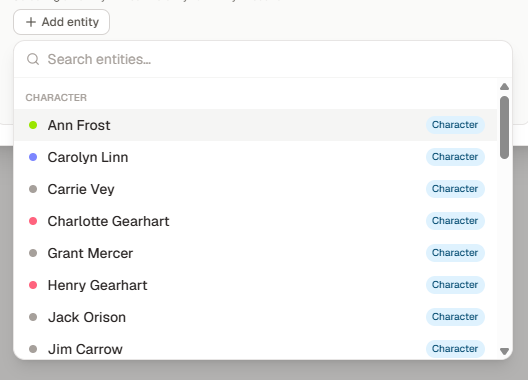
This selector now backs State Notes, relationships, the Timeline, Time Queries, Investigations, Locations, promoted notes, and the other general entity-selection surfaces. The point is not the list of migrated screens. It is that a large entity collection is now something you search, rather than something each feature has to invent its own dropdown for.
A few specialized surfaces keep their own controls on purpose, including manuscript entity tagging, workspace navigation and filters, and the compact POV pill in the editor toolbar.
Reference without leaving your work
The Floating Reference Viewer is the change I expect to matter most day to day.
You can open an Entity or a Lore Page as a read-only floating workspace, read it, follow references inside it, and return to writing without disturbing the workspace you were in.
- References open from Quick Reference, from entity mention popovers, and from Lore-link popovers across the supported project surfaces.
- Each time, you choose: view the reference in the floating panel, or open the full workspace.
- Nested references stay in the same viewer, with Back and Forward history.
- Opening the full workspace is how you get to editing. The viewer itself is read-only.
- On a narrow screen the viewer becomes a full-screen sheet instead of a draggable panel.
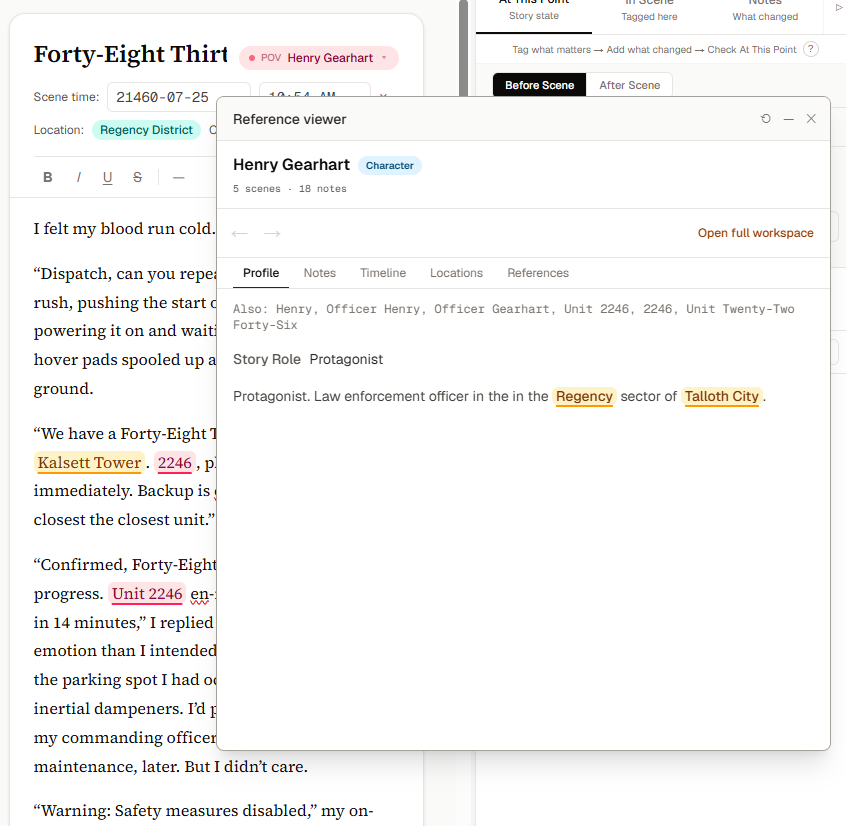
The Entity reference is not a trimmed profile preview. It is the compact, read-only version of the Entity workspace, with the same five views you get in the full workspace:
- Profile
- Notes
- Timeline
- Locations
- References
The full Entity workspace and the floating version share the same content surface on purpose. That keeps the floating reference faithful to what you see in the full workspace, instead of drifting into a second, reduced version of it.
One point about the panel. There is a single Floating Reference Viewer. Scriptri's floating-panel system can coordinate other floating tools, such as Word Finder and the Continuity Checklist, alongside it, but that does not mean you can open several independent Reference Viewer windows at once. Opening a new target replaces what the one viewer is showing and adds it to that viewer's history.
Linking the manuscript to Lore
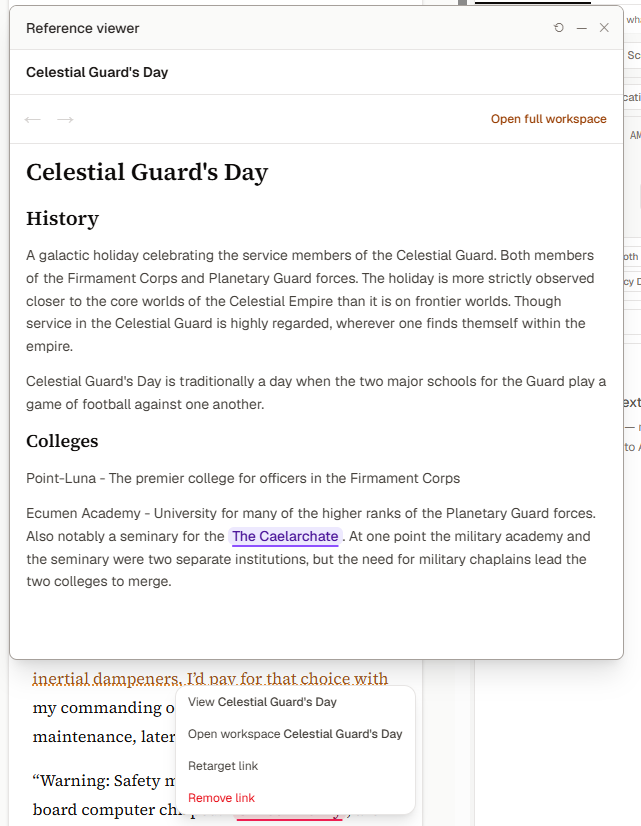
You can now select existing manuscript prose and link it directly to a Lore Page, or to a specific heading within that page. The prose does not change. A faint amber dotted underline is the only visible sign that the text carries a link.
Clicking a linked phrase, or reaching it with the keyboard, opens the same popover pattern used elsewhere in 0.5. From it you can:
- View the target in the Floating Reference Viewer.
- Open the target in the Lore workspace.
- Retarget the link to a different page or heading.
- Remove the link without touching the prose.
The value runs both ways. A Lore Page's backlinks now include the manuscript scenes that link to it, so you can see where a piece of worldbuilding actually appears in the story. Manuscript prose links out to Lore; Lore shows read-only backlinks in.
For Scrivener-synced scenes, the behavior is conservative. When synced text is unchanged, or the linked passage maps cleanly onto the new text, Scriptri keeps the link. When the passage changed enough that keeping the link is uncertain, the sync review tells you what will happen before you accept the update. Scriptri does not guess where a link belongs after a substantial rewrite.
This is manuscript-to-Lore linking specifically. It is not a general wiki-link syntax, it does not detect links automatically, it does not generate its own labels, and it links to Lore Pages and headings, not to every kind of project record.
Entity Notes by scene or thread
An entity's Notes tab now offers two readings of the same continuity history.
- By scene keeps the existing view: notes in manuscript order, under the scenes where they were written.
- By thread groups the opening state, its updates, and any resolution into one continuing line of thought.
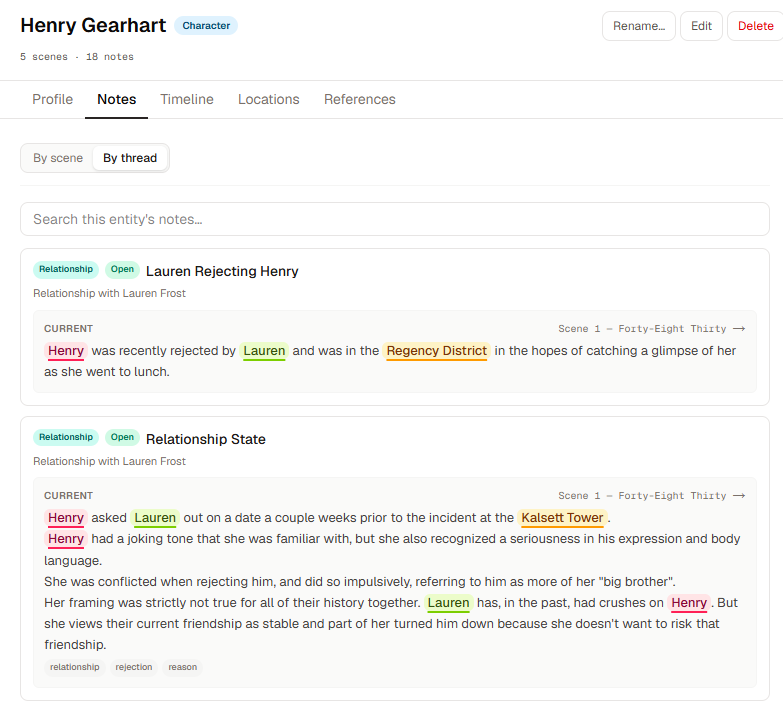
A thread shows its topic, its category, its current state, the earlier history behind that state, the scenes each entry came from, any closure or resolution details, and the relationship counterpart when the thread is a relationship. Search works across both current and historical entries, and expands the matching history so you can see why a thread was kept.
The purpose is to let you answer "what happened with this fact over time?" without rebuilding the story from scattered scene notes. A continuity concern that was resolved stays visibly resolved, even after the thread later picks up an ordinary update.
Both views use the same shared Entity surface, so this same read-only thread view is available when you open an entity in the Floating Reference Viewer.
Project Pulse grows with the project
Project Pulse is part progress recognition, part quiet tour of Scriptri's workflows. In 0.5 it reaches further into a project's life rather than stopping at first-use achievements.
New milestones recognize manuscript imports, larger word and scene counts, profiled entities, entity mentions, State Notes, closed threads, Lore Pages, and glossary mappings. There are now 42 milestones across eight groups, 11 of them new in this release. A few examples: 50,000 and 90,000 manuscript words, 25 scenes, 30 State Notes, and closing your first thread.
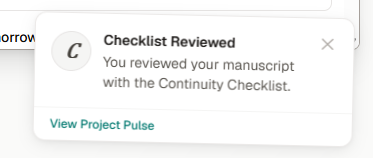
Milestone delivery was also hardened. Development-mode double rendering no longer produces duplicate toasts, and a large import that satisfies several milestones at once resolves into one readable summary instead of a stack of notifications.
Smaller improvements
A few fixes that do not need their own sections:
- Time Queries and Context now treat the POV character as present in a scene even when that character is not separately tagged in the manuscript. Related location results follow the same rule.
- Editing a Custom Property value no longer jumps the text cursor to the end while the change is being saved in the background.
- Word Finder has a keyboard shortcut:
Ctrl+Shift+F on Windows and Linux, Cmd+Shift+F on macOS.
- Entity type appearance is applied more consistently across Context, Events, Queries, Timeline, Time, reference selection, and mention tagging.
What has not changed
The boundaries from earlier releases still hold.
- Scriptri is local-first. Your project stays in your browser unless you explicitly export it or sync it through a supported workflow.
- Scrivener sync is read-only from Scrivener into Scriptri. Scriptri never writes back to a Scrivener project.
- Scriptri is not an AI prose generator. It does not send your manuscript text to an AI writing service.
- The beta is free. Pricing after the beta has not been decided, and any future paid version will be announced to current users well in advance.
0.5 adds no accounts, no cloud project storage, no collaborative editing, and no AI manuscript analysis.
Known limitations
- Manuscript Lore links go from selected manuscript prose to Lore Pages or headings. There is no general wiki-link syntax yet, no automatic link detection, no custom generated labels, and no linking to every kind of project object.
- The Floating Reference Viewer is read-only, and in 0.5 it supports Entities and Lore Pages.
- Only one Reference Viewer is open at a time, though it keeps navigation history.
- Custom entity behavior is bounded on purpose. The functional choices are location participation and POV preference, not a general plugin or scripting system.
- Existing projects keep their current entity colors. The new type-color defaults apply to fresh projects, not old ones.
- The manuscript link surface, like several editor surfaces, still relies on manual regression testing because Scriptri does not yet have a component-level interaction test harness.
What comes next
0.5 leaves behind reusable foundations: a shared reference viewer, project-specific structure through custom types and a scalable selector, and a first real link from manuscript prose into Lore.
The next work can build on those without forcing every kind of story information back into the same shape. For now, 0.5 makes a large project easier to hold in your head while you write.