Scriptri 0.6 is about getting from a recorded fact back to the place in the manuscript that supports it, and about seeing what is recorded at the exact point in the story where you need it.
Scriptri has always let you write down what characters know, believe, feel and want, and where they are. Those notes are attached to scenes. That leaves two questions writers may ask constantly while writing. What is true about this character right here? And which sentence in the manuscript makes me think so? Before 0.6, answering the first meant working through a filtered list, and answering the second meant remembering or re-reading the manuscript.
0.6 gives each question a direct answer. It also adds two places for the writer's own summaries, one for each scene and one for the whole project, so that you can find and recall your own story without rereading it.
Everything in this release is written by you. Snapshots are assembled from notes you recorded. Evidence is text you selected. Summaries are text you typed.
Why the point in the story matters
A note that says "Henry believes Lauren is safe" is only useful if you know when Henry believes it. Scriptri records story position by scene, and it always has. What it did not do was hand you one composed answer for one entity at one position. You could set up At This Point to show carried-forward notes, then scan the groups yourself.
The first two features in this release work on that gap from opposite ends. Snapshots compose what is recorded for an entity at a chosen point. Manuscript evidence lets a record point at the exact words behind it, and sometimes at an exact position inside a scene.
Entity Snapshots
A Snapshot shows one entity as it stands at a chosen point in the story, built only from the notes and events you have already recorded.
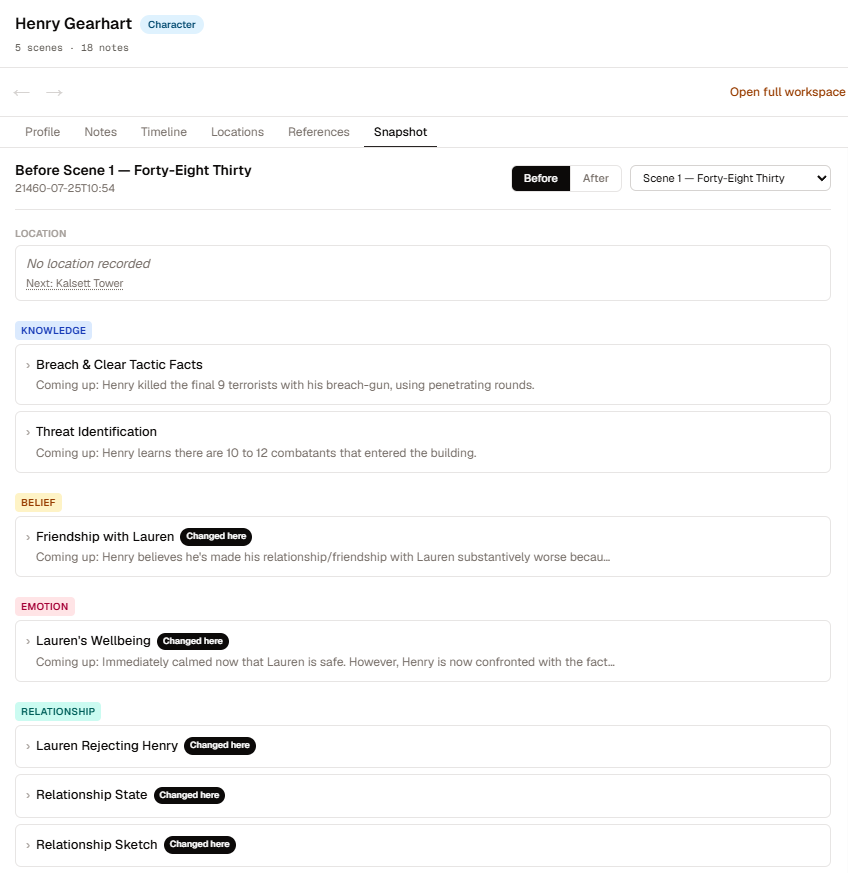
Here is the kind of result it produces, from After the Choirs Fell Silent, the manuscript I am working on right now:
Henry Gearhart, before The Comedown
At Kalsett Tower. Believes Lauren is probably safe, but remains emotionally unsettled by her rejection. Knows the attack involved at least ten combatants. Has not yet learned that disciplinary action is likely.
The Snapshot sits beside the Profile as its own tab in the Entity workspace. It is also what you see in the Floating Reference Viewer. If you click an entity mention in a scene and choose View, the panel opens on that entity's Snapshot, already anchored to the scene you are in and set to Before. That is one action from the manuscript to "what is true about this person at this point."
The anchor is always visible
Every Snapshot names its position: a scene, and either Before or After it. Before shows the state as it stood going into the scene. After includes what the scene itself recorded. When you open a Snapshot from anywhere other than a manuscript mention, you choose the scene yourself. Scriptri does not guess one on your behalf, and if the scene it was pointed at no longer exists, you are asked to choose again.
What it contains
- Current location, plus the previous and next known locations, worded to match how you recorded them: actual, last known, believed or unknown.
- Knowledge, beliefs and emotional state.
- Relationships, correctly identified from either side of the pair.
- Continuity notes.
- Open concerns, meaning continuity flags that were unresolved as of the anchor.
Inside each topic, the note in effect at that point appears in full. The one before it and the one after it are a click away, and a marker shows when something changed in the anchor scene itself. Each item has a source action that takes you to the scene it came from.
Snapshots work for every entity type, including custom ones. A Place or a Faction gets the same treatment as a Character. When little has been recorded, the Snapshot says so plainly instead of showing an empty box.
A Snapshot holds no data of its own. It is a reading of your existing notes, so it cannot drift out of date, and nothing in it is inferred or generated.
A change to At This Point
Building the location section exposed an inconsistency, and the fix changes an existing view. In At This Point with the mode set to Before, a location event recorded in the anchor scene itself is no longer used for that entity's location. Scriptri falls back to the most recent earlier event, or to unknown. Notes already worked this way, so Before now means strictly before the scene for both.
Manuscript evidence
Scene-level anchoring is often too coarse. Suppose Henry is at Kalsett Tower for most of a scene, leaves near the end, and is at his apartment when the next scene opens. A note attached to the scene cannot say when in the scene the change happened. And a note can quote a supporting line, but two notes that rely on the same paragraph had no way of knowing they shared it.
Manuscript evidence addresses both.
Tracking a passage
Select some text in a scene and choose Track passage from the selection menu. From there you can:
- create a State Note, Timeline Event or Location Event prefilled from the passage;
- attach the passage to a record that already exists; or
- save the passage without connecting it to anything yet.
Your prose does not change. A small marker appears at the end of the tracked range, and that marker is the only thing you click. The same passage can support several records, and a record can cite several passages. Tracked passages can overlap or nest, and each stays independently trackable. If you select a range that is already tracked, Scriptri reuses that passage instead of creating a second one.
The word for this is evidence. It is deliberately not "fact." Prose can misdirect, remember wrongly or belong to a character who is mistaken. A tracked passage is a pointer to the words that led you to write a record, and the record stays your interpretation.
Supporting a record and setting its position are different
This is the distinction that makes the feature useful, so it is worth stating carefully.
Citing a passage means the record is supported by those words. Nothing about the record's timing changes.
Marking a passage as the record's effective position is a separate, explicit choice. It says that this change happens at this point in the manuscript. Scriptri asks you to confirm it in words that name the record. The position used for ordering is the start of the tracked range, since that is where the described change begins. Extra passages on the same record remain evidence only, and you can clear an effective position later without deleting the connection.
With an effective-position passage for a change partway through a scene, Henry's departure from the tower is placed where it happens in the text. A Snapshot or At This Point view will order several such changes correctly within the scene, instead of treating them all as happening at the scene boundary.
A passage's position never becomes the story time of everything it mentions. A Timeline Event keeps its own normalized time even when the same passage, used elsewhere as the position for a knowledge note, describes that event in a briefing scene.
Seeing what a passage supports, and what supports a record
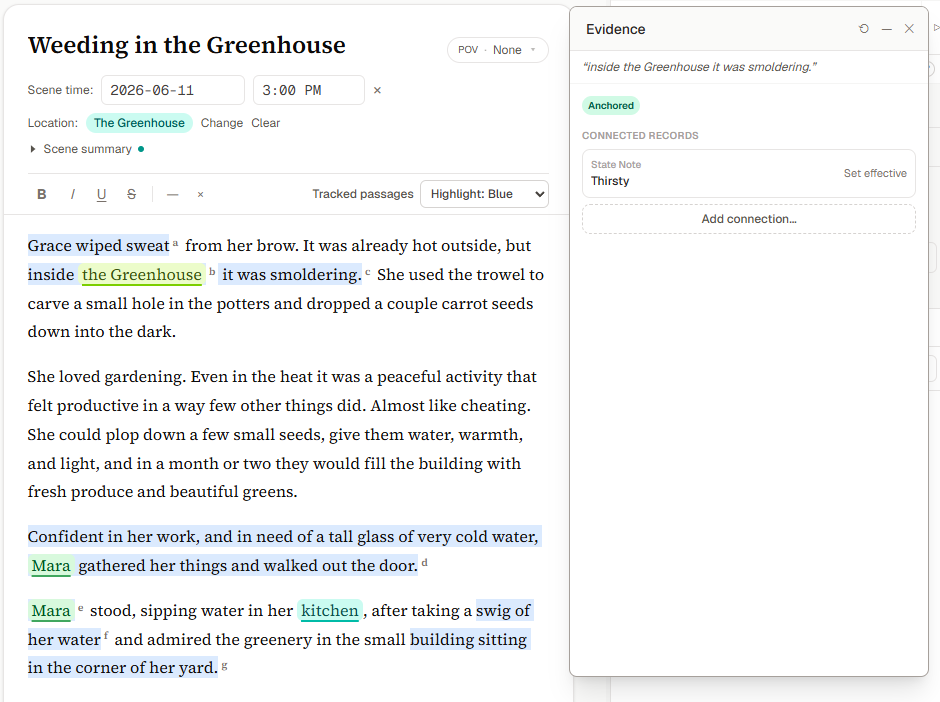
Clicking a marker opens the Evidence Inspector. It shows the excerpt, the state of its source, and every record connected to it, with an action to add another connection.
The other direction works too. Every place that shows a State Note, Timeline Event or Location Event now includes a Supporting passages list. It shows each cited passage with its source status and a Go to passage action. That action scrolls the manuscript to where the passage currently sits, even if you have edited the scene since, and briefly highlights it. If Scriptri cannot resolve a passage to exactly one place, it says so where you clicked and does not jump somewhere approximate.
A project-wide Evidence panel lists every tracked passage. You can search it by quotation, scene or connected-record text and sort by connected record, source-scene order or most recently changed.
Excerpts also appear in Snapshots, At This Point and the entity thread timeline, so the words behind a note are visible where you are reading it.
How tracked passages appear
A control in the editor toolbar sets how tracked passages display: annotation markers only, one of four highlight colors, or hidden. This is a display preference for your browser. It is never saved into the manuscript or the evidence records, and another browser starts with the default. Amber stays reserved for Lore links, and a Lore link always takes visual priority where the two overlap.
When the text changes
Manuscripts change constantly, and tracked passages are built to survive that without pretending to more certainty than they have.
- As you edit in Scriptri, the stored quotation follows the live text. If a passage is deleted, or splits into separate occurrences, it is flagged as unresolved instead of quietly keeping stale wording. It recovers on its own if you undo back to a state where it resolves.
- Copying and pasting tracked text does not copy the tracking. The pasted text is plain prose, and only the original selection stays tracked.
- When a linked Scrivener scene refreshes, a passage whose wording is unchanged keeps its identity, even if it moved. If the wording changed, Scriptri keeps the last quotation you accepted along with every connection and flags the passage for your review. Passages that were deleted or became ambiguous keep their connections with an unavailable source. Scriptri does not match a similar-looking sentence elsewhere and reassign the evidence to it.
- Deleting a note or event removes only its connection to the passage. Deleting the evidence itself asks for confirmation and names every record it is connected to. Deleting a scene leaves its evidence in place as unresolved.
Tracked passages travel with the project through export, import and copy, alongside the scenes they belong to.
Scene Summaries
Each scene now has an optional summary that you write. It is for recall and navigation: a line or several paragraphs saying what the scene does, or what you intend it to do. It can describe finished prose or a scene you have not written yet.
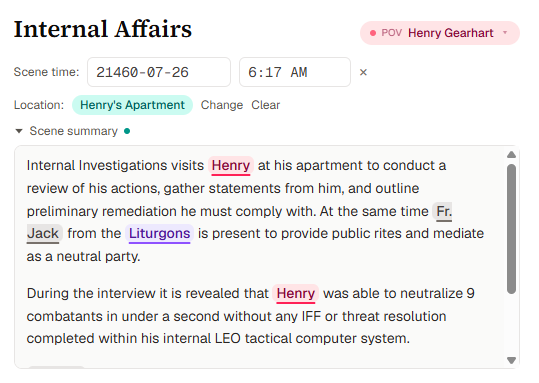
The Scene summary row sits in the Write header under the scene's point-of-view, time and location rows. It is collapsed by default, with a small dot to show a scene has one. Open it, type, and it saves as you go. Type @ to insert an entity chip. Chips are renamed along with the entity, so a summary does not go stale when you rename a character.
A summary is separate from the manuscript. It does not count toward word count and does not appear in a manuscript export. It is also separate from continuity records: it is not a note and not evidence. Scrivener sync never overwrites it, since it belongs to Scriptri.
Where summaries are searchable
- The scene list has a filter box. It matches scene titles and summaries, and every word you type has to match. When a summary is what matched, the card shows a short "Summary:" line with your words highlighted. It never searches manuscript prose. Adding a scene clears the filter so that the new scene is not hidden by it.
- Quick Reference matches summaries along with titles and prose. A scene result shows a labeled Summary excerpt with the option to open the scene.
- Investigations can find a scene through its summary. Attaching that hit records it as a scene summary, so it is never presented as a quotation from the manuscript. With the linked-entities filter on, chips in a summary count as links to those entities.
Summaries are also exported, snapshotted and backed up with the project.
Project Synopsis and Project Details
Projects had one short description, sized to identify a project on its card. That is a different job from saying what a whole manuscript is about, so 0.6 adds a Project synopsis for the longer account.
The fields are deliberately separate:
- Short description: the blurb on the project card. This is the field previously labeled "Description," and its content is unchanged.
- Project synopsis: a longer account of the whole manuscript. It never appears on the card and is never used as a stand-in for an empty short description.
- Scene summaries: what happens in one scene. The synopsis is not built from them and does not draw on them.
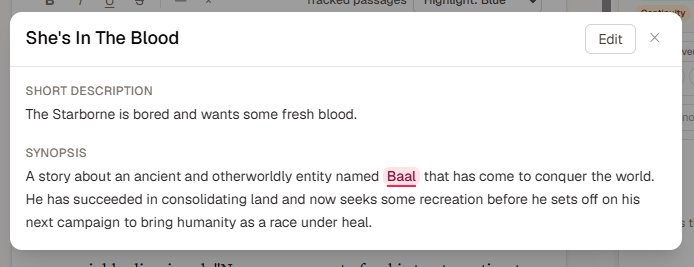
Both are edited in Project Details. Open it from the pencil on a project card, from the project name in an open project, from Data, then Project Details, or from a Quick Reference result. Quick Reference has a new Project group that matches the name, short description and synopsis, and opens Project Details at the field that matched.
The dialog has a view mode and an edit mode with explicit Save and Cancel. If you have unsaved changes, closing it any way at all (Escape, clicking outside, Close, the browser Back button or a page refresh) asks first, with Keep editing as the default. The synopsis and short description both accept @ entity chips, which follow renames. In an open project, activating a chip opens that entity in the Reference Viewer.
The synopsis stays out of readable manuscript export. It is part of the complete project export, snapshots and backups. Scrivener import and sync leave it alone.
Entity type icons
Custom Entity Types in 0.5 let each type have a color and an icon. Entities picked up the type's color automatically, but an entity without its own icon showed nothing, even when its type had one.
In 0.6, an entity with no icon of its own shows its type's icon. If you give an entity an icon, that icon wins. This appears in entity lists, the entity header, entity selectors, the @ menu and the entity chips in the Timeline, Time and Context views. Entity mention chips in the manuscript itself are unchanged.
Changing a type's icon updates every entity that inherits it immediately. Changing an entity's type changes the icon it shows, and an entity's own icon stays put through a type change. When you edit an entity, a short line under the icon says whether it is inheriting or custom, and a Use type icon button returns a custom icon to inheriting. If a type has no icon, nothing changes for its entities.
Smaller improvements
- The project card's edit pencil now opens Project Details in edit mode. The card's action buttons are now visible when they receive keyboard focus and on touch devices, where before they appeared only on hover.
- Project Pulse has two new milestones: First Tracked Passage and First Scene Summary.
- Help has new sections covering manuscript evidence, scene summaries and project details.
What has not changed
- Scriptri is local-first. Your project stays in your browser unless you export it or sync it through a supported workflow.
- There are no accounts.
- Scriptri is free to use today, and there will continue to be a useful free, local-first version that does not require an account.
- Scrivener sync is read-only from Scrivener into Scriptri. It never writes to a Scrivener project.
- Everything described above is written and chosen by you. Scriptri does not generate prose, summaries or synopses, and it does not read your manuscript to infer facts. A Snapshot only rearranges what you recorded.
Known limitations
- A tracked passage is one contiguous selection inside one scene.
- A Snapshot is read-only, and each item takes you to its source scene. It does not jump to the individual note. Location items are the exception, and open the specific location event. Clicking a relationship counterpart opens that entity's Profile, not its Snapshot.
- The highlighting choice for tracked passages is stored per browser and is not part of the project.
- Scene summaries are not imported from Scrivener synopses, and a summary written in Scriptri is never sent back to Scrivener.
- Scriptri saves a scene summary before it exports or backs up your project. If a summary cannot be saved, for example because browser storage is full, the export or backup will stop with a message rather than produce a file that is missing what you see on screen. Freeing browser storage lets the summary save and lets the export continue.
What comes next
Two pieces of work are underway for the next release.
The first is a rework of Investigations into story topics. A topic ties a set of related data together under an explicit name, and that grouping can be used as an investigation surface. The branding and the details are still being revised, so expect the name and the shape to change before it arrives.
The second is a consistency pass on how entities are tagged, along with refinements to popovers and a move of some dialogs into floating panels. Quick Reference is the first example.
Nothing else is firmly locked in yet, though I expect that release to hold more than these. A much larger update is also in development, further out than the next release. None of this is a schedule, and priorities will keep following real manuscripts and the feedback of writers who use Scriptri. If something in 0.6 gets in your way, or Snapshots or evidence do not behave the way you would expect, the feedback form on the home page is the fastest way to tell me.